Manage targets
A target is one number the campaign calls, together with the bot that takes the call and anything the bot should know about the person before it starts talking.
Targets live inside a campaign, so you add them by editing it. Add them one at a time
through the portal, or import a .csv file when the list is long.
Add a target
You add targets one at a time from the Target List tab of the campaign.
To add a target:
-
In the Navigation pane, expand Hub+, and select Outbound automation.
-
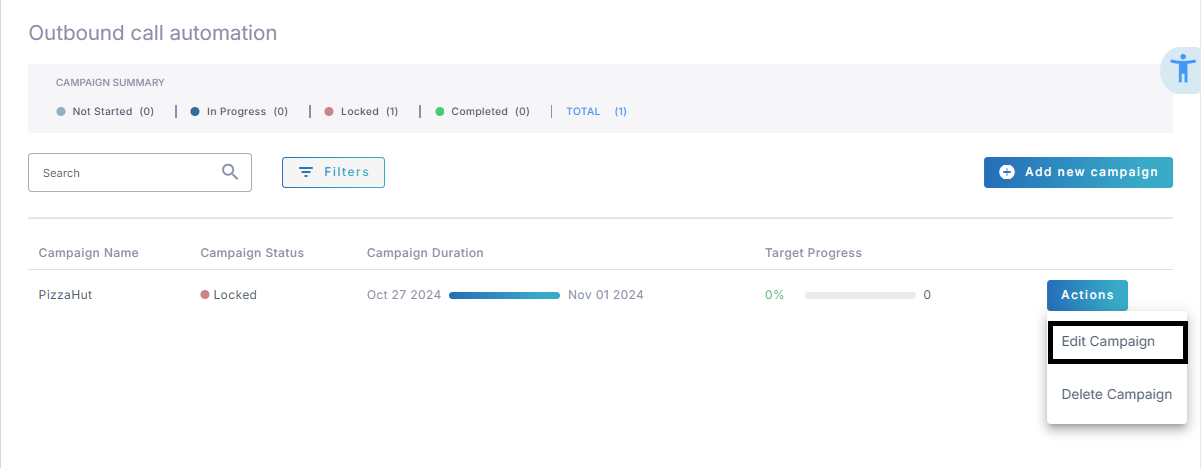
On the campaign, click Actions, and then select Edit Campaign.
-
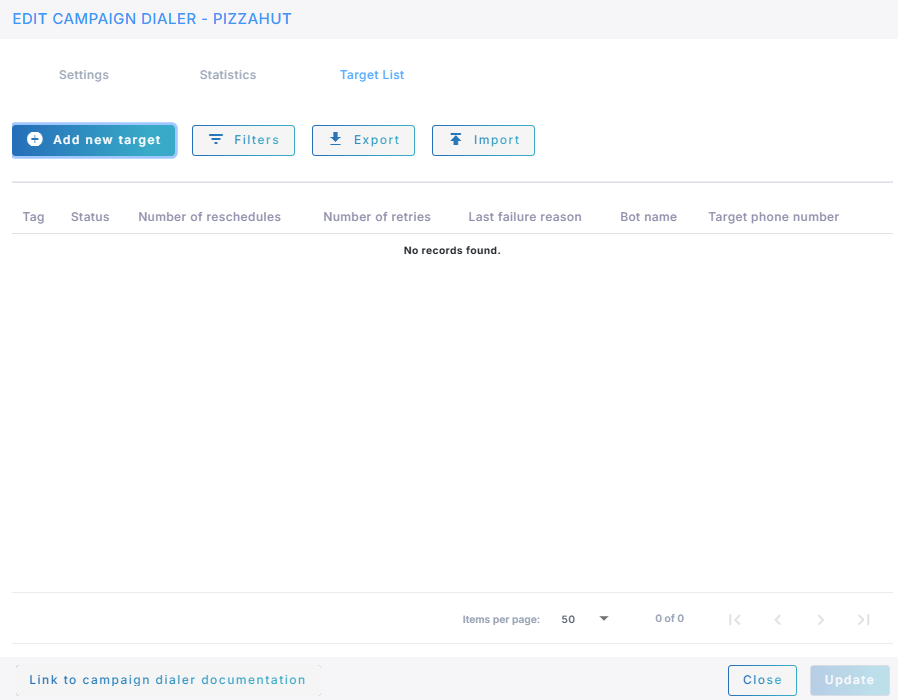
Select the Target List tab.
-
Click Add new target.
-
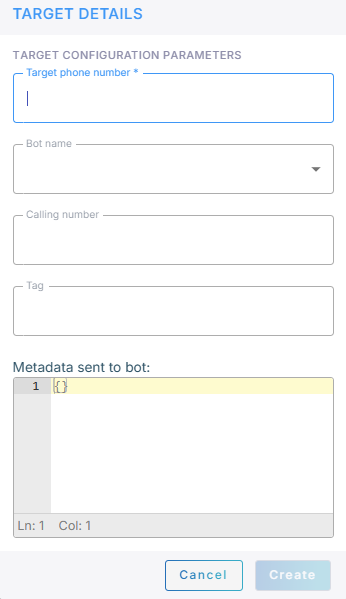
Fill in the target details:
Field What it holds 'Target phone number' The number to call. Required. 'Bot name' The bot that handles this call, which must have outbound calling enabled. Required unless the campaign has a default bot, which this overrides. 'Calling number' The number shown to the person you are calling. 'Tag' A short label of your own, up to 16 characters, to help you find the target in the list. 'Metadata sent to bot' A JSON object passed to the bot when the call starts, so it knows who it is talking to: a name, an account number, an appointment time. -
Click Create.
The metadata reaches the bot in the dialoutMetadata field of the first message. See
Call initiation.
The bot can send information back the same way. When it sets botOperationData, as
described in
Specifying bot operation result,
whatever it returns appears in the target's Bot Result Meta Data in the exported file.
Edit a target
You edit a target from its row in the target list. Click Edit on the row.
Until the campaign starts, you can change every detail of a target. Once it starts, the details become read-only, and the only setting you can still change is the target's 'Target State', which you switch between Enabled and Disabled. That is how you take a number out of a running campaign without losing its history.
Import targets
Importing is the practical way to load a long list. The .csv file has six columns,
comma separated, in this order:
Tag,Enabled,Bot Name,Target Number,Calling Number,Bot Meta data
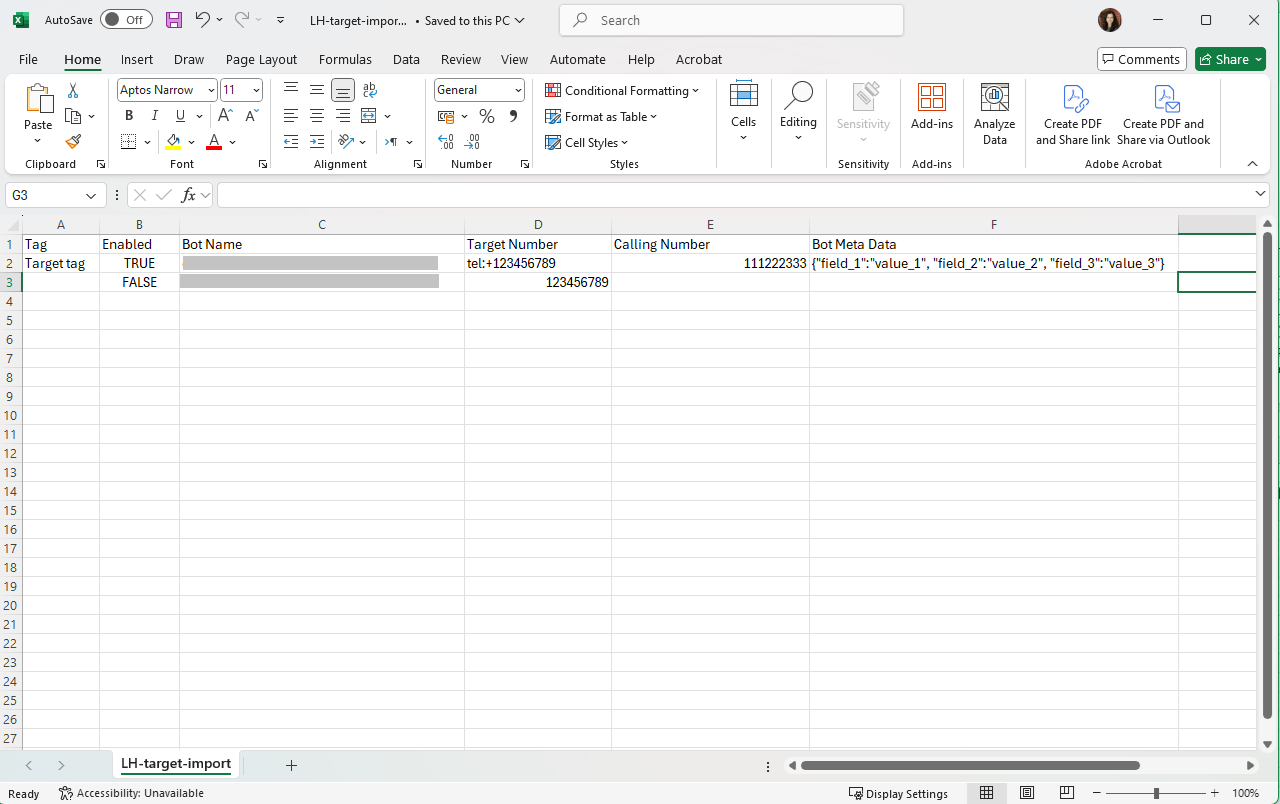
Two things are worth knowing before you import:
- Importing replaces the campaign's targets. Everything already there is erased.
- You can import freely while the campaign is still Not Started. After it has started, you can only import into a campaign that has no targets, and never into one that has completed. The Import button is unavailable when the file would be refused.
To import targets:
-
In the Navigation pane, expand Hub+, and select Outbound automation.
-
On the campaign, click Actions, and then select Edit Campaign.
-
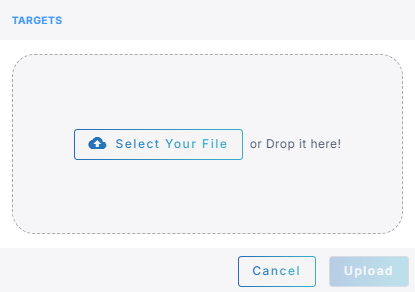
Select the Target List tab, and then click Import.
-
Click Select Your File and browse to the
.csvfile, or drop the file on the dialog. -
Click Upload.
The targets appear in the list.
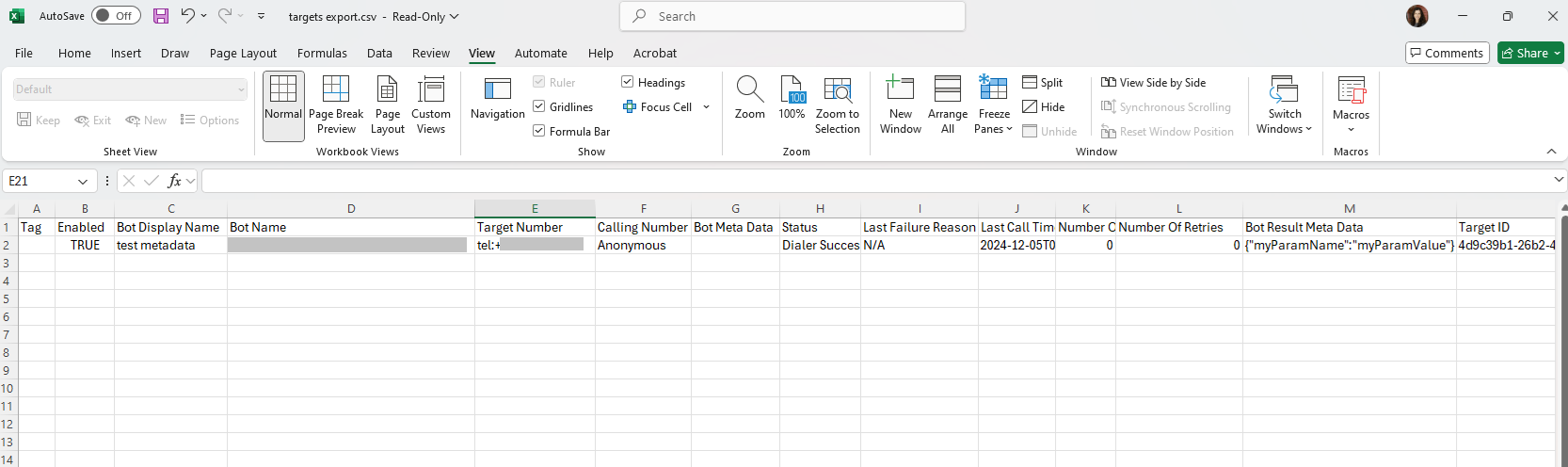
The quickest way to build an import file is to export one and edit it. The export has more columns than the import accepts, so delete column C, which holds Bot Display Name, and everything from column H onwards, leaving A, B, and D to G.
Export targets
Exporting downloads the whole target list as a .csv file named after the campaign. The
file serves both as a backup and as the source of an import file.
To export targets:
-
In the Navigation pane, expand Hub+, and select Outbound automation.
-
On the campaign, click Actions, and then select Edit Campaign.
-
Select the Target List tab, and then click Export.
Alongside the settings you entered, the file carries what happened on each call:
| Column | What it holds |
|---|---|
| Status | The point the target reached: Dialer Success, Not Initiated, and so on. |
| Last Failure Reason | Why the last attempt failed. Empty if it never failed. |
| Last Call Time | When the last attempt was made. |
| Number Of Reschedules | How many times the call was rescheduled to a later slot. |
| Number Of Retries | How many attempts have been made on the number. |
| Bot Result Meta Data | Whatever the bot returned in botOperationData. |
| Target ID | The target's identifier, used by the REST API. |